4.11 Logging on to VMS from a PC
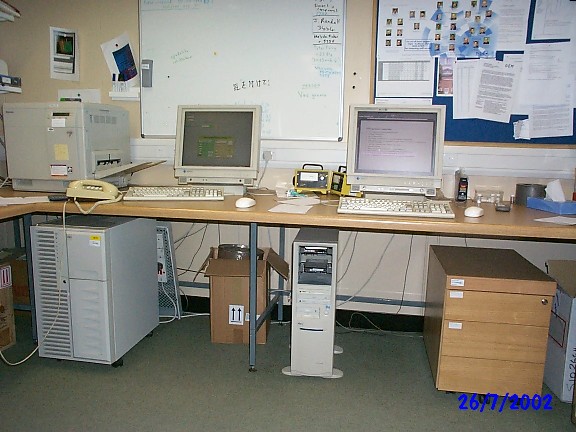
The user PC in the GEM cabin (the rightmost of the two PCs in the cabin) may be used to open windows which are logged on to a VMS computer as follows...
The following
procedure only needs to be performed once for each username:
From the ‘Start’ button, click ‘Programs’, then ‘Exceed’, then ‘Client Wizard’.
This should open up a new window ‘X Client Startup Wizard’.
Click ‘Next’.
In the new window ‘Host’ should be set to isisa.rl.ac.uk and ‘Host Type’ should be set to DEC VMS.
Click ‘Next’.
The next window should specify Terminal – check that this is specified, but do not change anything else.
Then click ‘Next’.
Type in your VMS username where it says ‘Host ID’ and then click ‘Next’.
Enter a ‘description for the application’ which will be recognisable to you.
Click ‘Next’ and then click ‘Finish’.
An icon will be created in the Exceed folder which you can double-click to start a window on a VMS computer.
Each time you want
to open a window on the VMS system, double-click this icon.
Last updated on 23 Aug 2002 by Alex Hannon (a.c.hannon@rl.ac.uk)